Tuesday, November 19, 2013

Add/Remove Music and Video folders from Windows 8.1 Store Applications

    This is a functionality so buried inside the MSDN documentation that I had to "look" at another application that uses it and only after I was able to find the documentation for it. For the moment (guess because it was not given enough visibility yet) I think there is only one store application that uses it and it is, of course, built by Microsoft (not even Nokia Music application uses it). 
    So what is this all about? If you develop a store application that uses the MusicLibrary capability, you can access to the audio files inside the Music library folders. The problem, until now, was that there was no way to add/remove folders to/from the Music library inside a store application so, in case the user did not had any folder added to the Music library the developers had to find a way to explain how to manually add folders to the Music library (a mess believe me).
    The missing functionality is implemented by the NEW StorageLibrary class available for Windows 8.1 store applications. The class is actually a diamond in the rough:


    The usage is basic but it is exactly what I needed. You need to use the GetLibraryAsync method to retrieve the StorageLibrary you need. Once you have it you can retrieve the StorageFolders currently added to the library and for the Music and Videos libraries, you can add or remove folders from this library. If removing a folder from the library the user will be prompted if he agrees with the removal. For adding a folder using the async method the user will be prompted with a folder picker and returns the newly added StorageFolder, otherwise null.
    As usually I really hope that, if you need it, this blog post will spare you the hours I've spent in finding out how it is done.

Update: There is also a code sample available on msdn Library management sample

NAMASTE


Sunday, November 17, 2013

What Windows Phone Start screen should learn/inherit from Windows 8.1

    Last week I did a session on live tiles and it got me thinking on how Microsoft and the Windows Phone team could actually improve the Start screen experience and also the application list that, in my opinion, lacks design and more important it is not very practical to use. Please consider that i am not a designer and i did not have time to invest in doing the screenshots (did cut and paste using Paint.Net). I am doing this post just to illustrate my ideas.
    Let me start with the start screen. The live tiles are an awesome feature and really differentiate Windows and Windows Phone from their competitors.  I think that, for certain functionality,the Windows 8.1/8 start screen is better than the Windows Phone one. First of all (and the most important) the Scroll Direction. The windows phone have the start screen in vertical compared to Windows 8 which is horizontal. Horizontal scrolling would be better and here are some reasons why I think this:
  • the main reason why you scroll is because you did not find what you were looking for so you would like to reach the part you are interested as fast as possible. All Windows Phone have the height > width in Pixels so scrolling horizontally you actually scroll MORE information than scrolling vertically 
  • If scrolling would be horizontal it would be possible to implement grouping just like Windows 8 and enable a functionality similar to semantic zoom or jump list to easily reach the tile/tiles you need
  • It would be also more familiar to people coming from other platforms (like Android or iOs) where the scrolling is horizontal
  • Different from Windows 8 or tablet UI I think that this scroll should be Paged and not continuous similar to what you have on iOS e Android. This is because the user would be faster to search what he needs (if it is not on the page I see now better scroll a whole page and not a part of it). This won't minimize in any way the live tiles functionality but would give better speed in seeing all I am interested in. 
  • If the user gives titles to the various pages then in the JumpList/SemanticZoom he would see those names otherwise he sees the number of pages and he can easily reach any page (even the last one) without scrolling and scrolling and scrolling.
  • The last page of the start screen that is not full would have the arrow orientated down just to give the hint to the user that the Application full list is "under" the start screen just like in Windows 8.1
Other aspect where Windows 8.1 start screen is better is the tile templates. Windows 8.1, in comparison with windows Phone, has much more templates that fit better the needs of the developers. In Windows Phone you can actually build your own images with everything on it but it would be better to have more standard templates. The current templates when used "as is" are pretty limited:
  • The flip template is "slow" to change from one side to the other and this way not everything you need to see is right in front of you. You should actually put secondary informations on the back and expect that 70% of the time the user would not wait for the tile to flip
  • The iconic template in small and medium sizes have the same informations so it is a "waste" of space to keep the iconic tiles in medium size when you could have them little 
  • The cyclic template is more decorative then functional. Even if you build the images I am curious how many people will actually wait for the images to finish a cycle instead of launching the application. For something like photos app it is ok if the user just want to add decorative items to your start screen
If the Start Screen would be horizontal in this case the application list should be accessed by scrolling vertically just like in the Windows 8.1. The current design of the application list is not optimal it doesn't take advantage of the space it has and because of that you would have to scroll a lot. Even with the Jumplist it is a lot of scrolling. It would be actually better (in my opinion) a paged grid + Jumplist/semantic zoom to easily jump the pages+ Search to easily find an app. Grid design it would even scale better on higher resolutions as it could have more columns. Here is a small comparison (I repeat I am not a designer). Again paged scrolling would give you better speed than continuous scrolling.


Near the search there could actually be a button that enables the user to change the grouping  (alphabetical, most used, recently downloaded,...).

If you read this post and have observations (maybe I am missing something) or ideas please let me know. There is always room to improve the user experience and my only wish is that Windows Phone get better and better each year.

UPDATE: And the most important when implementing horizontal scrolling, new templates apart from better functionality is better transition and familiarity (don't really find the right word) between desktop and phone


NAMASTE

Thursday, November 14, 2013

HID communication for Windows 8.1 Store applications

     I've started thinking about this post a while ago when Windows 8.1 was still in preview (I actually did some testing at that time because I was really excited abouth this new "cool" scenario store applications) and after seeing this Build 2013 session: Apps for HID Devices
     As I did not had the cool missle launcher to play with I have chosen the XBOX360 Wireless controller connected to my PC using an USB adapter similar to this one. One of the reasons why I did this, apart from proof of concept post, is because I have some bluetooth toys that I like to "drive" using the Xbox360 controller (starting with version 8.1 we have full bluetooth support for the Store applications: SPP, OBEX, GATT/BLE ). The Xbox360 controller gives one of the best gaming experience, way better than any touchscreen, keyboard or motion controllers and also enables multiplayer gaming on the same device/screen. 
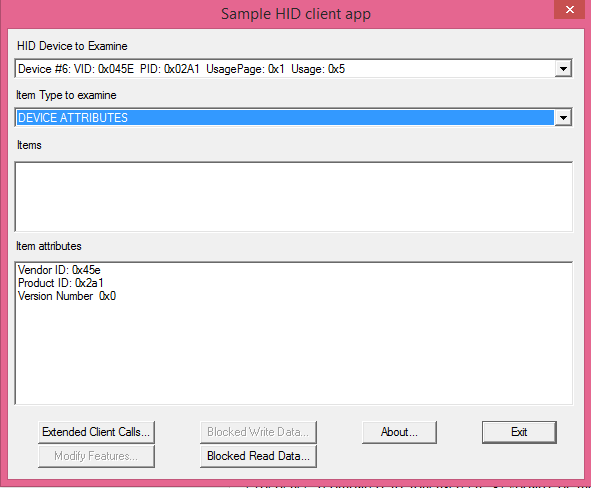
    In order to be able to connect to the Xbox controller we will need to find the VID, PID and UsagePage specific for our device. As I did not know these values I've used the HClient Sample application to retrieve them. To run the HClient sample you will need Microsoft Visual Studio 2013 and, more important, Windows Driver Kit (WDK) 8.1. HClient gives you detailed informations on all the HID devices connected to your PC and to easily find out which HID device is the one you are looking for just disconnect the device from the computer, look at the items inside the list, reconnect the device and identify the new device. This way I identified that my XBOX360 controller has VID: 0x045E, PID: 0x02A1, UsagePage: 0x1, Usage: 0x5  (there might be multiple hardware versions of the desktop adapter that might have different PIDs):  


Selecting the HID Caps for the controller we will see that the input report is 15 bytes long and we don't have an output or a feature report available for this device. This is one of the reasons why, in this case, it would be better to use XInput instead of HID because it would give you access to the lights and the motors inside the controller.

Now that we have the needed values we can start to build our Windows Store application. The first thing we need to do is to set the necessary Capabilities that enable communication between our application and the Xbox controller (manually edit the Package.appxmanifest inside your project using the View code option). In want to know more about the options you can set read How to specify device capabilities for HID.

So I've have added:

  <m2:DeviceCapability Name="humaninterfacedevice">  
    <m2:Device Id="vidpid:045E 02A1">  
     <m2:Function Type="usage:0001 *"/>  
    </m2:Device>  
   </m2:DeviceCapability>  

This way we specify that we only want our application to communicate with devices that have VID 045E and PID 02A1.

Now that we have setup the capabilities we can try to find and connect to and Xbox controller. We will use HidDevice.GetDeviceSelector to generate the query that we will pass to the method DeviceInformation.FindAllAsync that returns an array with all the XBox360 controllers connected to our PC.

   public class Xbox360Controller  
   {  
     public const UInt16 Vid = 0x045E;  
     public const UInt16 Pid = 0x02a1;  
     public const UInt16 UsagePage = 0x01;  
     public const UInt16 UsageId = 0x05;  
   }  

 string selector = HidDevice.GetDeviceSelector(Xbox360Controller.UsagePage,Xbox360Controller.UsageId,Xbox360Controller.Vid,Xbox360Controller.Pid);   
       var deviceCollection = await Windows.Devices.Enumeration.DeviceInformation.FindAllAsync(selector);  
       if (deviceCollection.Count == 0)  
         return "No Xbox360 controller found!";  
       for (int i = 0; i < deviceCollection.Count && i < MaxControllers;i++)  
       {  
         var _device = await Windows.Devices.HumanInterfaceDevice.HidDevice.FromIdAsync(deviceCollection[i].Id, Windows.Storage.FileAccessMode.ReadWrite);  
         if (_device == null)  
         {  
           try  
           {  
             var deviceAccessStatus = DeviceAccessInformation.CreateFromId(deviceCollection[i].Id).CurrentStatus;  
             switch (deviceAccessStatus)  
             {  
               case DeviceAccessStatus.DeniedByUser:  
                 return "User denied the access!";  
               case DeviceAccessStatus.DeniedBySystem:  
                 return "System denied the access!";  
             }  
           }  
           catch { }  
           return "Failed to connect to the controller!";  
         }  
         Controllers.Add(new Controller(_device));  
       }  

 We can connect to any of the devices in the returned array using HidDevice.FromIdAsync by just passing the Id of the HID device. The first time we connect to a new device the user will be prompted to grant permission to the application to communicate with that specific device. Keep in mind that the user can later change the access permissions to each device using the Settings -> Permisssions flyout so you should always check why the connection failed (_device==null) and if DeniedByUser ask him to reenable access to the device.


If everything went fine we are now connected to at least one Xbox360 Controller and we can subscribe the InputReportReceived event. The input report contain all the 15 bytes that we need and we can manually parse the bytes or, even better, we can use the defined structures. In our case we have 10 BooleanControls which are our buttons :

 /*  
       * Buttons Boolean ID's mapped to 0-9 array  
       * A - 5   
       * B - 6  
       * X - 7  
       * Y - 8  
       * LB - 9  
       * RB - 10  
       * Back - 11  
       * Start - 12  
       * LStick - 13  
       * RStick - 14  
       */  

and 6 numerical controls :

       _leftStickX = args.Report.GetNumericControl(0x01, 0x30).Value;  
       _leftStickY = args.Report.GetNumericControl(0x01, 0x31).Value;  
       _rightStickX = args.Report.GetNumericControl(0x01, 0x33).Value;     
       _rightStickY = args.Report.GetNumericControl(0x01, 0x34).Value;  
       _DPAD = args.Report.GetNumericControl(0x01, 0x39).Value;  
       _LT = Math.Max(0, args.Report.GetNumericControl(0x01, 0x32).Value - 32768);  
       _RT = Math.Max(0, (-1) * (args.Report.GetNumericControl(0x01, 0x32).Value - 32768));  

The usageId for the GetNumericalControl method are the ones listed under "INPUT VALUE" section in the "Sample HID client" app.

The Left Trigger and Right Trigger are returned as an unique numerical control value equal to LR-RT value. This is the second reason why XInput is a better choice for communicationg with the Xbox controller (using XInput you have distinct values for RT and LT).

Here is a screenshot from the attached sample application.


SOURCE CODE of XBox360_HID.cs

SAMPLE CODE

NAMASTE

Saturday, September 21, 2013

Retrieve pitch and roll from the accelerometer data [Update]

UPDATE:
You will find an updated version of this post HERE

    So what happens if you designed your application to drive a bluetooth device using the Motion class (because the output is less noisy) and then you realize that on the Lumia 520 and Lumia 625 the Motion class is not supported and you have to use the accelerometer. In my case, as i only use pitch and roll,  the solution was pretty simple as it is actually possible to calculate the pitch and roll values directly from the accelerometer data. This way I can still use the Motion class and when not available fallback on the data extracted from the accelerometer. To better understand the algorithm behind this transformation have a look at this LINK.
     Before applying the transformation I also apply a low-pass filter to remove short-term fluctuations. The difference between the Arduino sample is that the pitch and roll are inverted and also the pitch was 180 degrees off so I remapped the values (when holding in postion 0 it was telling 180 degrees). I also transformed from radians to degrees for easier visualization (the multiplication with 180/Math.Pi)

     const double alpha = 0.5;  
     double fXg = 0;  
     double fYg = 0;  
     double fZg = 0;  
     void acc_ReadingChanged(Windows.Devices.Sensors.Accelerometer sender, AccelerometerReadingChangedEventArgs args)  
     {  
       //Low Pass Filter  
       fXg = args.Reading.AccelerationX * alpha + (fXg * (1.0 - alpha));  
       fYg = args.Reading.AccelerationY * alpha + (fYg * (1.0 - alpha));  
       fZg = args.Reading.AccelerationZ * alpha + (fZg * (1.0 - alpha));  
       //Roll & Pitch Equations  
       double pitch = (Math.Atan2(-fYg, fZg) * 180.0) / Math.PI;  
       double roll = (Math.Atan2(fXg, Math.Sqrt(fYg * fYg + fZg * fZg)) * 180.0) / Math.PI;  
       //rotate 180 degrees  
       pitch=(pitch>=0)?(180-pitch):(-pitch-180);  
     }  

     I have also built a small sample that does comparative plots of the two values using the motion class and the transformation from accelerometer data. Initially I have added also the Microsoft.Devices.Sensors.Accelerometer but the data is almost the same with Windows.Devices.Sensors.Accelerometer with small delays between updates.


    Here is the  SOURCE CODE of the sample.

Saturday, August 31, 2013

Add side menus to an Windows Phone application (similar to the Facebook app)

     It is been a while since my last post, but I have a good reason (on the 20th of July - so tired that the first time I've mistaken the date by one month -  my son Mattia was born and between work and my duties and no sleep there is not much time left for writing on my blog even if I have a lot of posts that I want to do).  
     I will get right to the subject (the title is not one of the best chosen). A few days ago I was talking with my friend Alessandro Scardova about the possibility of implementing side menus inside an Windows Phone application (similar to the ones in the Facebook application). Even if not 100%"Modern UI" design it is a good approach for applications that have multiple options that need to be accessed quickly (also the approach can be applied cross-platform). So I took it as a challange and tried to implement it.
     My initial thought was that I might be able to implement it using an templated panorama or pivot, but after some tests I was not able to get the desired behaviour:


  • when we start the application we will have the selected ViewPort selected
  • swiping left or right we can open/close the side menus
  • also using the buttons on the upper left and on the right corners we can also close and open the side menus
  • the side menus have a width smaller than 480 this way, when opened, we can still see a part of main viewport (including the upper button)
  • when opening the menus the ApplicationBar is not visible
     The solution I have implemented (doesn't use MVVM pattern) it is more a proof of concept on how to implement the functionality. The approach is pretty simple. We have the whole view that we move inside a canvas using manipulations and animations. Initially I thought that I can use only  grid without the canvas and animate the margin of the grid but, as Windows Phone doesn't have ThicknessAnimation, my animations for opening and closing the menus were not very smooth. Also I've tried implementing the swipe behaviour using the Touch.FrameReported event but the results I got were not very good.

     So how does my implementation work:
  • I have a canvas/grid that has a width of 1320 and the height stretches to the whole available height that contains my whole view
  • The view is inserted in a canvas with initial Canvas.Left position set to -420 this way we see the main view port (component)
  • The "stable" positions inside the canvas are:  0: left menu opened, -420: main view and -840:right menu opened
  • When pressing the buttons we will use a resource Storyboard with a  DoubleAnimation to set the the Canvas.Left position inside the canvas to 0,-420 or -840:
  <Canvas.Resources>  
       <Storyboard x:Name="moveAnimation">  
         <DoubleAnimation Duration="0:0:0.2" To="0" Storyboard.TargetProperty="(Canvas.Left)" Storyboard.TargetName="LayoutRoot" d:IsOptimized="True" />  
       </Storyboard>  
     </Canvas.Resources>  

Use the animation to open/close the menus:
  void MoveViewWindow(double left)  
     {  
       _viewMoved = true;  
       if (left==-420)  
         ApplicationBar.IsVisible = true;  
       else  
         ApplicationBar.IsVisible = false;  
       ((Storyboard)canvas.Resources["moveAnimation"]).SkipToFill();  
       ((DoubleAnimation)((Storyboard)canvas.Resources["moveAnimation"]).Children[0]).To = left;  
       ((Storyboard)canvas.Resources["moveAnimation"]).Begin();  
     }  

  • To implement the swipe I use the ManipulationStarted, ManipulationDelta and ManipulationEnded on the canvas container. On delta we set the Canvas.Left value directly (no need for animations) between a maximum of 0 and a minimum of -840.
  private void canvas_ManipulationDelta(object sender, ManipulationDeltaEventArgs e)  
     {  
       if (e.DeltaManipulation.Translation.X != 0)  
         Canvas.SetLeft(LayoutRoot, Math.Min(Math.Max(-840, Canvas.GetLeft(LayoutRoot) + e.DeltaManipulation.Translation.X), 0));  
     }  

  • when swiping we also memorize the initial Canvas.Left position. If substracting the final Canvas.Left and the initial one the absolute value is lower then 100 (not a long swipe) we bounce back to the initial position. Otherwise we move to the next position.
  private void canvas_ManipulationCompleted(object sender, ManipulationCompletedEventArgs e)  
     {  
       var left = Canvas.GetLeft(LayoutRoot);  
       if (_viewMoved)  
         return;  
       if (Math.Abs(initialPosition - left) < 100)  
       {  
         //bouncing back  
         MoveViewWindow(initialPosition);  
         return;  
       }  
       //change of state  
       if (initialPosition - left > 0)  
       {  
         //slide to the left  
         if (initialPosition > -420)  
            MoveViewWindow(-420);  
         else  
           MoveViewWindow(-840);  
       }  
       else  
       {  
         //slide to the right  
         if (initialPosition< -420)  
            MoveViewWindow(-420);  
         else  
           MoveViewWindow(0);  
       }  
     }  


  • _viewMoved is used to see if the view was already moved by another event since our manipulation started (like a button was pressed)
   Here are some screenshots from the sample that you can download and play with:

   Hope you will find it useful.

Here is the SOURCE CODE

NAMASTE!

Saturday, July 13, 2013

Embed YouTube videos into your Windows Phone/Windows 8 app

    That was quite a long time with no blog post, but I am coming back. Recently I had to investigate the possibility to embed youtube videos in an Windows Phone application. The easy way is to simply launch IE with the Uri of the video, but this way you have no control over the video as your app will get suspended. I then had a look at the Youtube client apps available in the Windows Phone Store and saw that some of them integrate the video directly into the app. So wanna know how they are doing this?
   Well there is a library availabe on codeplex called MyToolkit. This library has a class that is able to retreieve the Uri of the video stream directly from the YouTube video id. You can then download the stream for offline access or can directly play the video using the MediaPlayerLauncher. MyToolkit is also available as a nu-get component so you can directly add a reference to it.
     The MyToolkit library is really nice, but what if we could improve it a little bit more and have more control over the video? If we would be able to play the video inside our application page would give us the possibility, for example, to add advertising on top of the video (video apps have a good chance of monetizing using advertising as the user, just like in games, would probably stay longer on that page). For this task we can use Microsoft Player Framework that is available for both Windows Phone 8 and Windows 8. Even more the Player Framework will handle the buffering depending on your connection speed, it is a control inside your page and also will give you full-control over the video playback. (the Player Framework is awesome and is expandible).
    So let's create a small test application. First download and install the Player Framework as it is not available on nu-get (yet). I have used the version 1.3 beta. Then create a new Windows Phone 8 project add reference to the Media Player Framework Windows Phone extension and then, from nu-get, get the MyToolkit.Extended library. For simplicity my MainPage looks like this :

   <Grid x:Name="LayoutRoot" Background="Transparent">  
     <mmppf:MediaPlayer x:Name="player">   
     </mmppf:MediaPlayer>  
   </Grid>  

where mmpf is:
 xmlns:mmppf="clr-namespace:Microsoft.PlayerFramework;assembly=Microsoft.PlayerFramework"  

    Now on Loaded event I use MyToolkit to retrieve the YouTube stream Uri and then pass it to the MediaPlayer:

 private async void PhoneApplicationPage_Loaded(object sender, RoutedEventArgs e)  
     {  
       var videoUri = await MyToolkit.Multimedia.YouTube.GetVideoUriAsync("PQVlW4xbNuI", MyToolkit.Multimedia.YouTubeQuality.Quality480P, MyToolkit.Multimedia.YouTubeQuality.Quality480P);  
       if (videoUri != null)  
         player.Source = videoUri.Uri;  
     }  

    For convenience the page is set to landscape. I don't know if playing Youtube video using this method is 100% legal as it bypasses the advertising (it is what every other windows phone YouTube app is using including the one from Microsoft that was pulled out of the store).
    Also pay attention that there are some videos where the resulting stream is protected/encoded and cannot be played by the Player Framework. One of these videos is Girl on fire by Alicia Keys. Also Microsoft's Youtube app (if you still have it installed ) was not able to open this type of streams and just gives an error while MetroTube, after realizing that it cannot open the stream inside the app, it launches Internet Explorer with the "classic" link to the video.
    The same method and libraries can be used for your Windows 8 store application.

    Here is the Source Code. (the video I use is my own).

NAMASTE

Wednesday, May 15, 2013

Why setting a control Height and Width to 0 is not the brightest idea inside a Windows Phone project

I am doing this small post because I have battled the whole morning with this bug and finally got it and it might save you some time if you read it and have the same problem. 

Scenario: Pivot with two items and at some point the swipe on one of the items doesn't work anymore. Putting a button on the PivotItem that doesn't swipe I can still change the selected item and the second item still swipes correctly.

Cause: I was setting the Height=0 and Width=0 on a control inside the PivotItem (in my project I don't want my control to be collapsed). The problem presents itself if you set any of the controls inside a PivotItem to Height and Width = 0 when the PivotItem is selected. If on the other hand you set the Height and the Width to anything >1 the PivotItem continues to swipe correctly. Even more strange: if the PivotItem is not selected when  you set the Width and Height to 0 and swipe to the control's PivotItem everything will still work correctly. So pay attention better not use set Width and Height =0 on UI controls. 

If you want to test it yourself and maybe tell me what really happens I am attaching a small project created from a Windows Phone Pivot application where I've added a menu that will set the Height and Width of the list inside the first PivotItem to 0. I also set the background of the first PivotItem to green so you will see that it is still expanded. 


How to reproduce the problem: If you execute the menu command with the first PivotItem selected you will see that the pivot doesn't swipe anymore. If you change the values to 1, run the app again and execute the menu with the first PivotItem selected you will see that the pivot still swipes correctly. If, on the other hand, you let the values set to 0 but when executing the menu you have the second PivotItem selected you will see that the first item stil swipes correctly. Bug? Feature? Just pay attention to setting controls to Width and Height 0 because you might have problems with the UI and you won't know what is causing it.


NAMASTE